


Customise data, lists and email campaigns
Objective. Add useful business information at the correct level, make it reliable for filtering and reporting, and use controlled selections for client or contact email campaigns.
Your data before starting
In your subscription, choose three non-sensitive customers that you are authorised to update. Record them as customer A, customer B and customer C: A and B will receive PME, while C will receive Association. Check configuration rights, test email addresses and email transport; the workshop stops before any real send.
What you will learn
- Choose whether a custom field belongs to clients, matters, employees or contacts.
- Define values that remain consistent and usable in lists and reports.
- Build and verify an email recipient population before sending.
Recommended workflow
- Define the business purpose, owner, field type, allowed values and update rule before creating the field.
- Add the field to the correct record type and test it on a small representative sample.
- Build a filtered list or report and verify the resulting population record by record.
- Prepare the message, sender, recipients, links and attachments, then send a test before the full campaign.
Before continuing
- The field does not duplicate standard information already available in Tempolia.
- Allowed values and empty-value rules are documented and consistently applied.
- The recipient count, consent context and sender are reviewed immediately before sending.
Prerequisites and safe training scope
Use an authorised training scope in your subscription and an account allowed to configure custom characteristics. The your subscription exercise environment shown in the controls remains read-only for this workshop: every prepared field is an unsaved simulation. The exercise needs three non-sensitive customer records: customer A and customer B, which will belong to the PME segment, and customer C, which will belong to the Association segment. If these codes are unavailable, choose three test customers and record the substitutions before starting so that every later check uses the same population.
Create a training-only customer characteristic named Training segment with the closed values PME and Association. Do not repurpose a production field. Confirm that customer email addresses are test addresses and that you understand the applicable consent and communication rules. This workshop stops at recipient and message validation: it does not send an email.
From the field to the email campaign
The management team wants to send an operational notice only to PME customers without maintaining a parallel spreadsheet. You will translate that need into one governed field, populate the three sample records, build a controlled list and prepare a message whose expected population contains exactly customers A and B. customer C must remain excluded for a reason visible in its source record.
- 10 min: turn the business request into a structured-data rule.
- 15 min: create the field and standardise its allowed values.
- 15 min: populate and verify the three customer records.
- 20 min: filter, prepare the message and validate the population without sending.
- 10 min: diagnose discrepancies and document the maintenance rule.
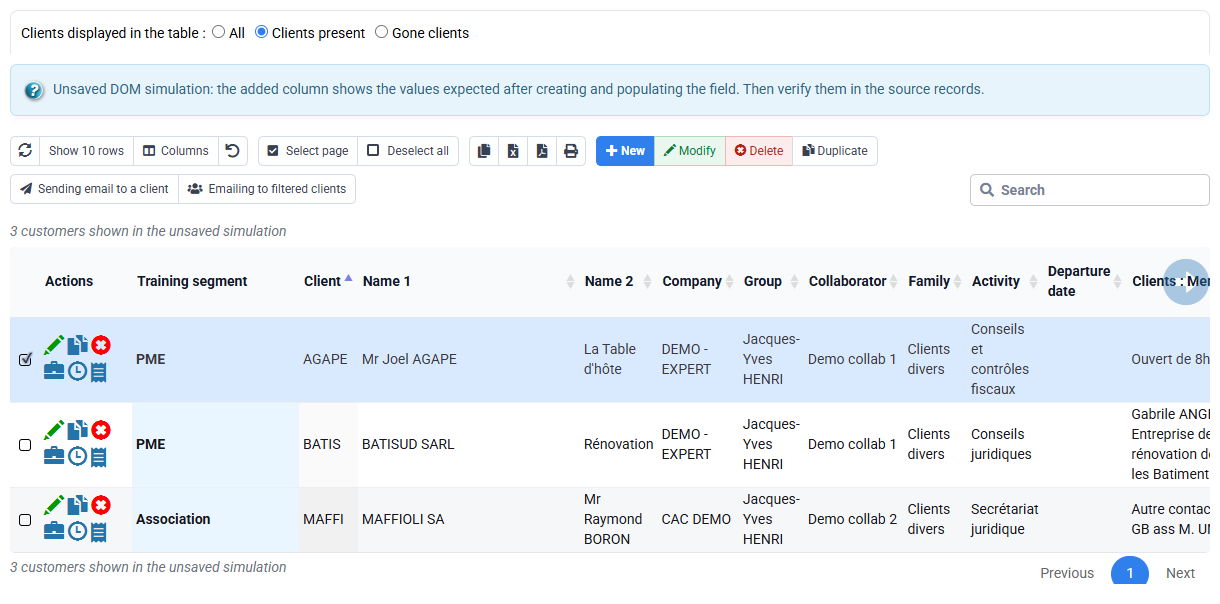
The filtered list and email validation step show exactly two recipients, customers A and B. customer C is excluded because its Training segment value is Association, not because it was manually deleted from an export or recipient field.
1Design a field that can be maintained
Path: Configuration > Custom characteristics, then Configuration > General options.
Begin with the decision the field must support. A customer-level field is appropriate when the value describes the whole relationship; a matter-level field is preferable when it varies by engagement; an employee field describes internal skills or organisation; a contact field describes an individual correspondent. Write down the owner, allowed values, empty-value meaning and review frequency before creating anything.
For the case, create Training segment at customer level with technical code SEGFORM, string type and length 20. In the list-values field, enter exactly "PME" => "PME", "Association" => "Association". This is Tempolia’s closed-list syntax; plain words on separate lines would not define the expected choices. Avoid duplicating a standard sector, manager or status already available in Tempolia: two competing sources create reports that cannot be explained.
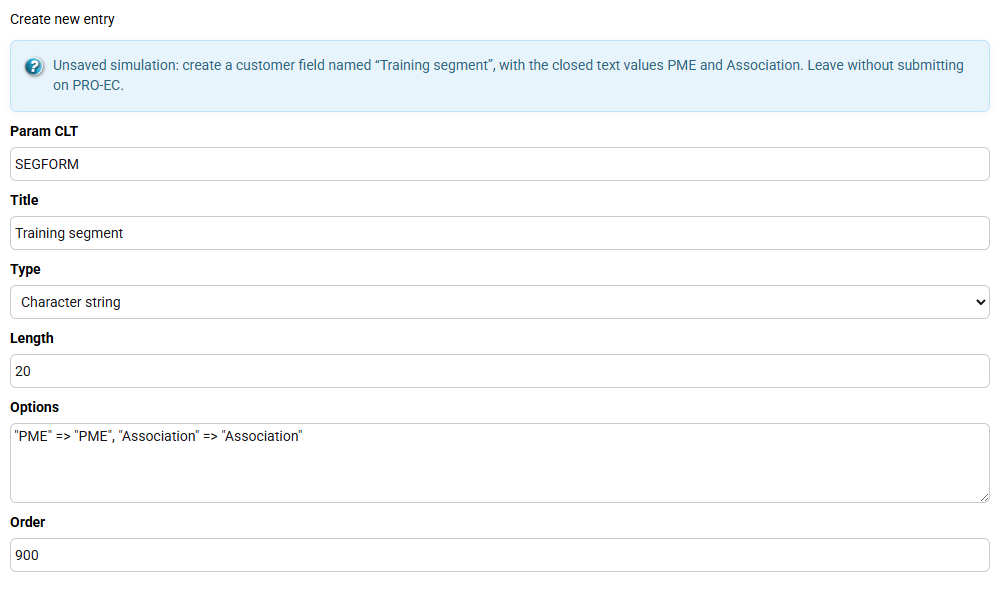
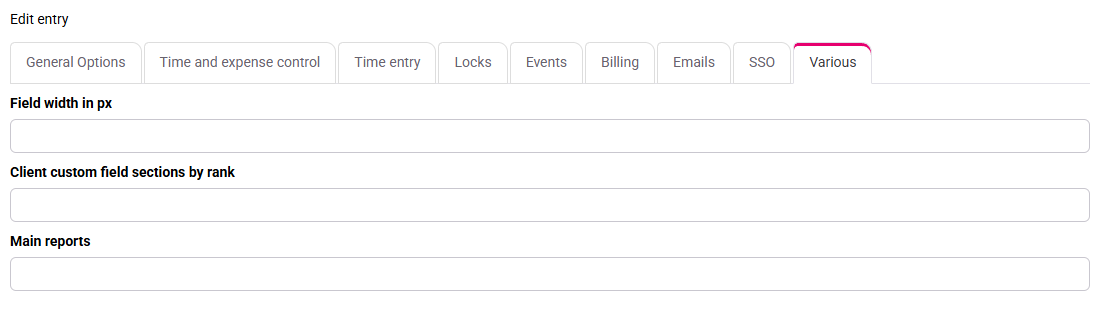
One unambiguous field appears on customer records, offers only PME or Association and has a named owner. If it appears on matters or allows free text, return to configuration rather than compensating in the report.
2Populate the source records before reporting
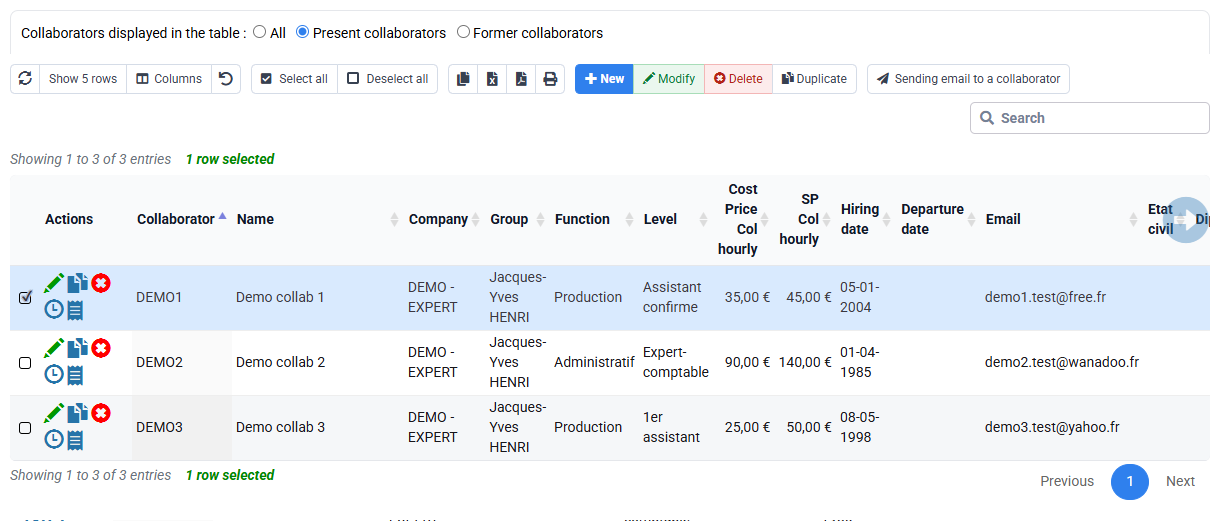
Path: Clients / Matters > Clients, Clients / Matters > Matters, and Employees > Employees.
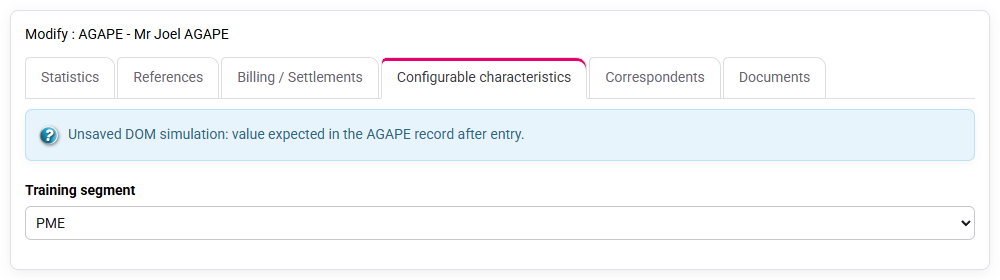
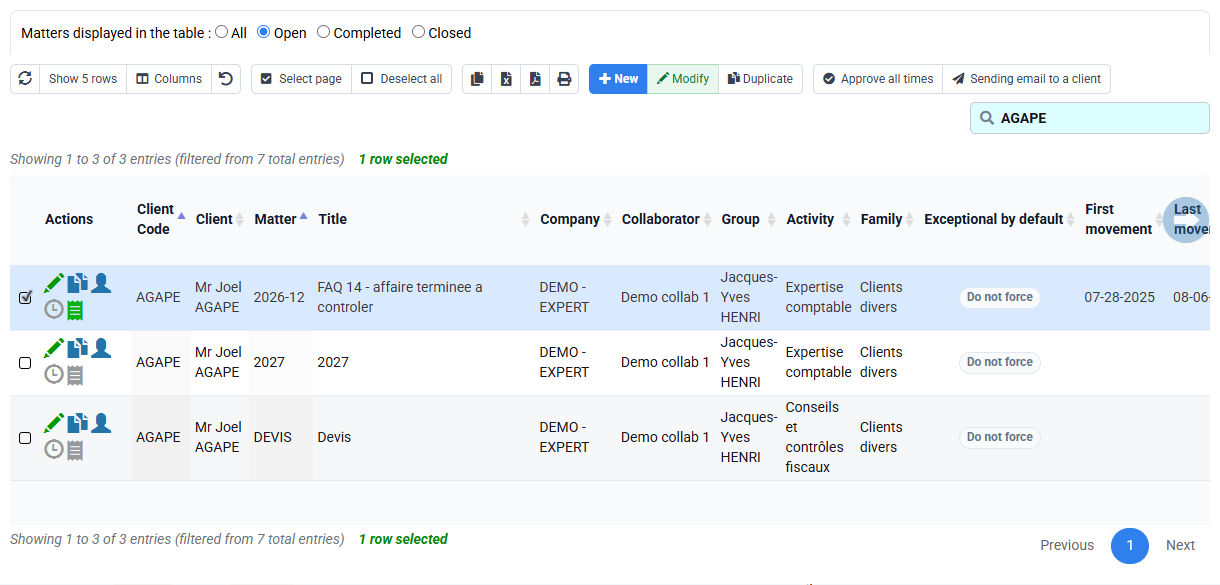
Open customers A and B and select PME. Open customer C and select Association. Save each record, reopen it and verify the persisted value. This deliberately small sample lets you test the label, location, permissions and user instructions before a wider update. Do not fill the field from a spreadsheet and then treat that spreadsheet as the new source of truth.
Use the lists to assess coverage, but correct an error in its source record. If one customer is missing, check whether the field is empty, the record is inactive, the user lacks access or another filter is still stored in the session. A list with the expected count is useful only when you can explain every included and excluded record.
3Build an explainable list and export
Path: Tools > Reports / Editions and Tools > Exports.
Select the customer source, display the code, name, Training segment and email columns, then apply Training segment = PME. Keep the first preview short. Read the displayed filter rule and open at least one included and one excluded record. The expected two-row population is not proven by a generic report form or an empty table.
An export is a controlled output, not a shadow database. If the exported value is wrong, correct Tempolia and regenerate the export. Record the extraction date and filters when the file supports a business decision, because the population can change later.
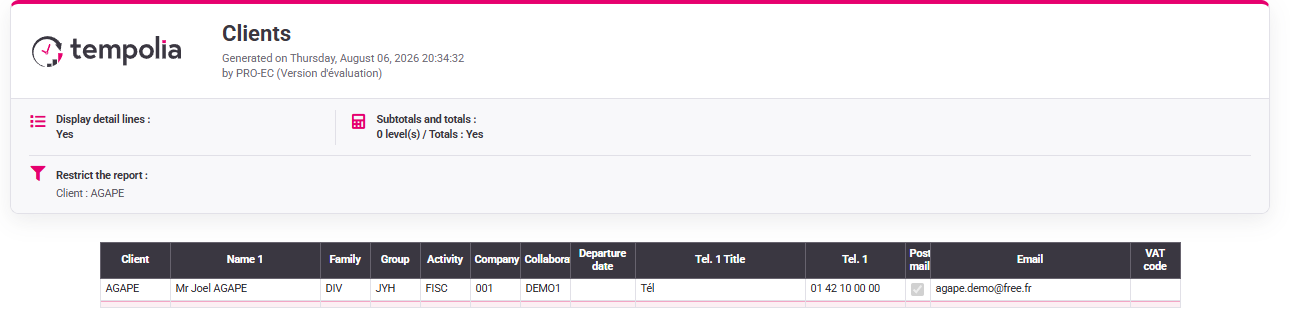
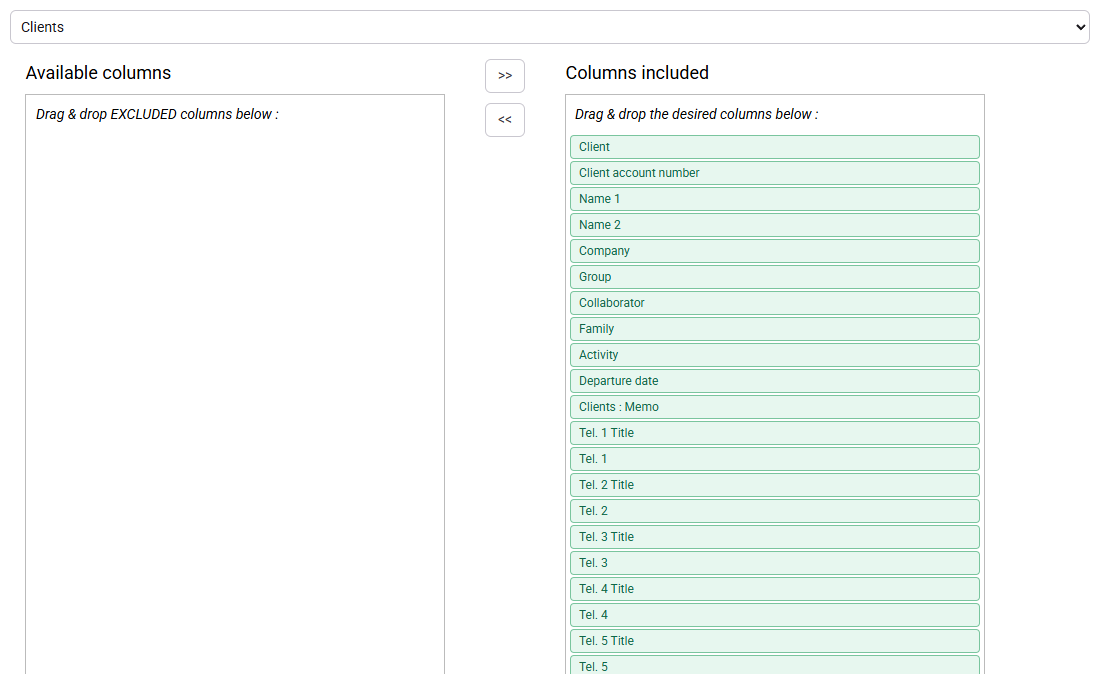
The report returns two rows and the export reproduces those same two codes. If the total is one, three or zero, clear residual filters, verify active-record and company scopes, then inspect the source values before changing the business rule.
4Prepare and validate the email campaign
Path: from the filtered customer list, choose the email action; for transport settings use Configuration > General options, Emails tab.
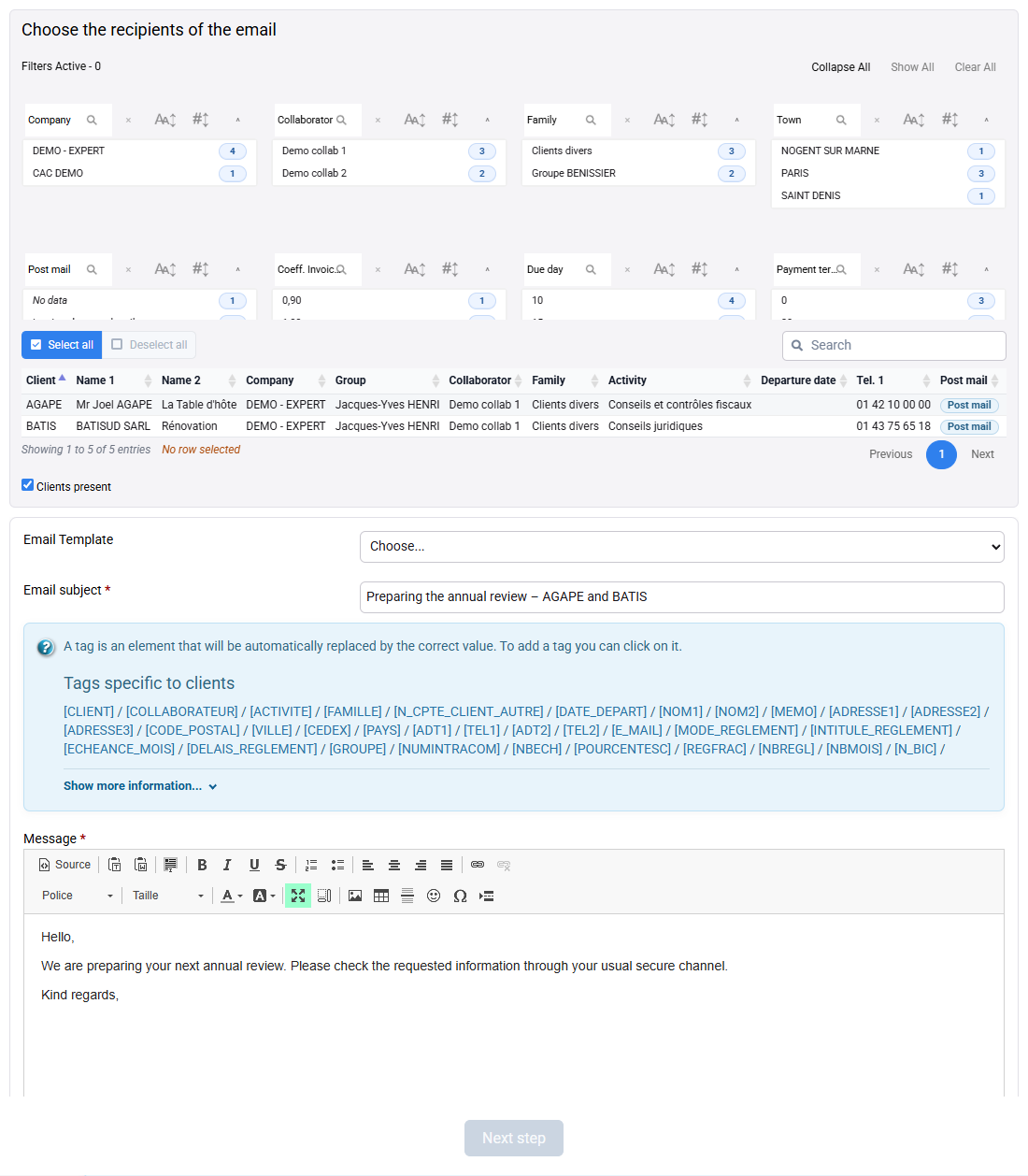
Note the filtered row count before selecting all. Transfer the selection to the message form and confirm that the recipient list still contains exactly customers A and B. Prepare a descriptive subject and a short test message. Review sender, reply-to address, links, attachments and personalisation. Do not use a template merely because it is available; it must match the communication and language.
Stop before the final send action. A first real campaign would require an authorised internal test list and a successful transport configuration. An SMTP error says nothing about whether customer C was properly excluded; conversely, a working SMTP server does not prove the population is correct.

Hands-on verification and discrepancy diagnosis
Carry out the writes below only on that authorised scope; in your subscription, review the unsaved simulations without submitting.
- Verify the source. Reopen all three customer records and write a control table with code, segment and email presence.
customer A = PME, customer B = PME and customer C = Association. A blank or unexpected value is corrected on the customer record, not removed later.
- Verify inclusion and exclusion. Apply only Training segment = PME, record the total, and open one retained and the excluded record from the list.
Two rows remain and you can state the source value responsible for each decision. If not, inspect saved filters, permissions, company scope, inactive status and empty values in that order.
- Verify the hand-off. Transfer the two rows to the email form, compare the recipient count, subject and body, then leave without sending.
The selection is unchanged between list and message. A missing address is a data-quality exception to correct or document; it is not permission to add an unfiltered recipient manually.
Errors to avoid
- Creating a free-text field when the decision requires stable categories.
- Putting customer information on matters and then obtaining duplicate customers.
- Correcting an export or recipient list instead of the Tempolia source record.
- Keeping an old session filter and attributing the reduced population to the new field.
- Treating an empty list, generic report form or SMTP error as proof of a successful workshop.
- Sending from a training database or to real addresses without explicit authorisation.
Step back
A custom characteristic is not merely another input box. It becomes a governed business vocabulary used by records, reports and operational actions. Reliability therefore depends less on the act of creating the field than on its ownership, value discipline, coverage checks and correction process.
The guided example forms a traceable chain: business rule → configured field → three source records → two-row report → two-recipient message. Every downstream result must be explainable from the preceding object. The export and campaign remain outputs; they never replace the source.
- Use a standard Tempolia field when it already expresses the need.
- Use a custom characteristic when the organisation needs a stable, owned value at a clearly defined record level.
- Use filters and reports to reveal data quality before taking an operational action.
- Separate population validation, communication approval and technical transport: each has a different owner and control.
You can propose the correct record level and allowed values for a new need, prove a target population from source records, diagnose a discrepancy and stop a campaign when either consent, data quality or transport prerequisites are not satisfied.
Check the population before sending
Reopen customers A, B and C after saving: A and B must show PME, while C must show Association. In the list, display customer code, email address and Training segment, then filter for PME. The expected total is two rows. In the email form, select those two rows and confirm that the summary contains exactly the two test addresses before leaving without sending.
If the total differs, return to the source records and look for a blank value, a free-text synonym, the wrong characteristic scope or a filter left active. Never complete the population manually.