


Configure the database, access rights and locks
Objective. Set up a reliable and secure Tempolia database by configuring companies, users, reference data, permissions, profiles and period locks in the correct order.
What you will learn
- Configure issuing companies, bank accounts and core reference data.
- Grant each employee only the permissions required for their role.
- Use profiles and locks to standardise access and protect closed periods.
Recommended workflow
- Define companies, general options, bank accounts and document settings first.
- Create stable sales, task and expense codes before operational data is entered.
- Create employees, assign profiles and review sensitive permissions individually.
- Test the configuration with a standard user account before opening the database to the team.
Before continuing
- No shared or generic employee account is used for day-to-day work.
- Permissions are tested with the actual user profile, not only as Administrator.
- Locks protect approved periods without preventing legitimate current work.
Before you begin
In your subscription, choose a representative employee who must enter time on one open matter with an authorised task and see only matters belonging to the assigned group, but must not see cost prices or alter a locked period. Audit the complete configuration chain and decide whether access is ready.
Prerequisites in your subscription
- Have the necessary administration rights in your subscription and a representative business account. Without change authorisation, perform the workshop as a read-only audit.
- Locate your issuing company, selected employee, assigned group, effective profile, one task, its sales code and its one-character VAT code.
- Choose one matter the employee must see and another outside the permitted scope, so both permission and prohibition can be tested.
- Use a second account representing the tested profile. A check performed only as administrator does not prove real access.
Suggested schedule — 1 h
- 5 min: state the business need and prohibited actions.
- 10 min: check options, company and bank.
- 10 min: review the employee record and assignments.
- 10 min: test profile, scope and sensitive columns.
- 10 min: check tasks, expenses, sales codes and VAT.
- 10 min: test approval and locking with the business account.
- 5 min: step back and document the access decision.
1. Configure common rules before individual users
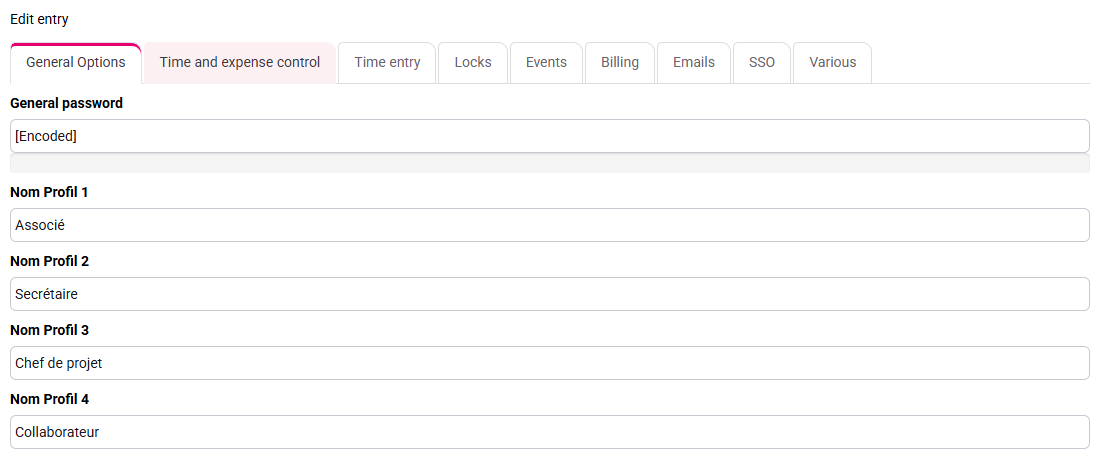
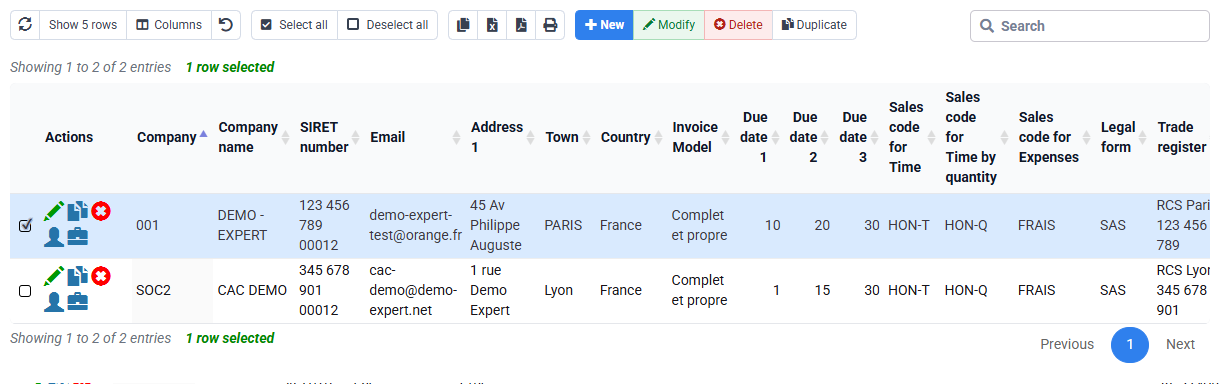
Open Configuration > General options, then Companies and Bank accounts. General options establish profiles, passwords, entry controls, approval behaviour and defaults. The issuing company holds legal identity and invoice settings; bank accounts support payment instructions and exports. These values are foundations, not a collection of optional switches.
For your issuing company, identify which rules the team truly uses. Record the purpose, owner and one observable test for every sensitive option. Enabling everything produces contradictory behaviour and makes support harder. A setting is maintainable only when another administrator can understand why it exists and how to retest it.
2. Build the employee, profile and scope chain
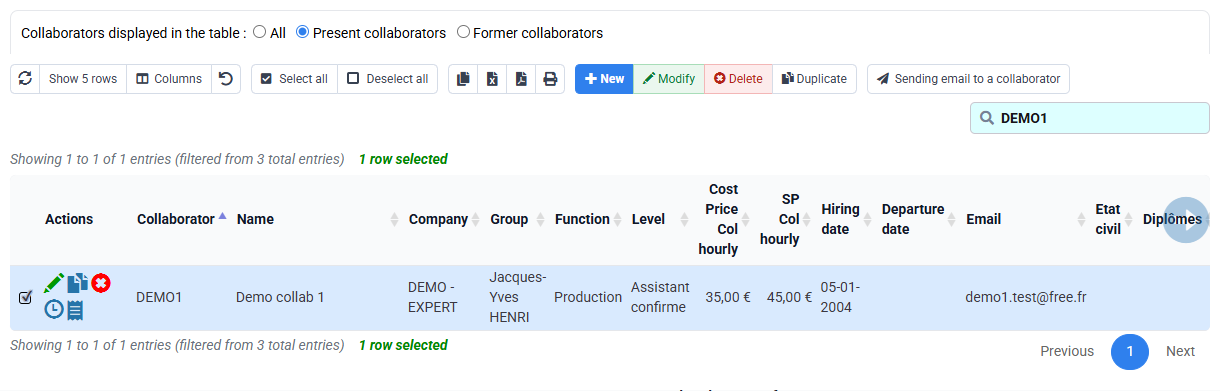
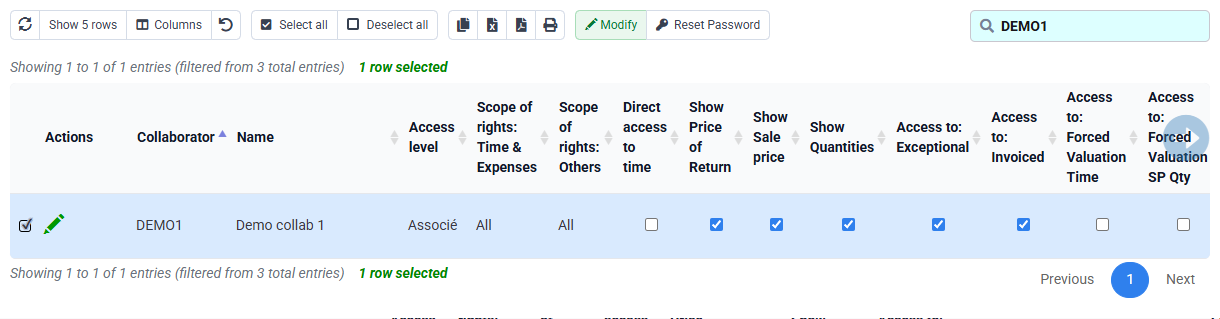
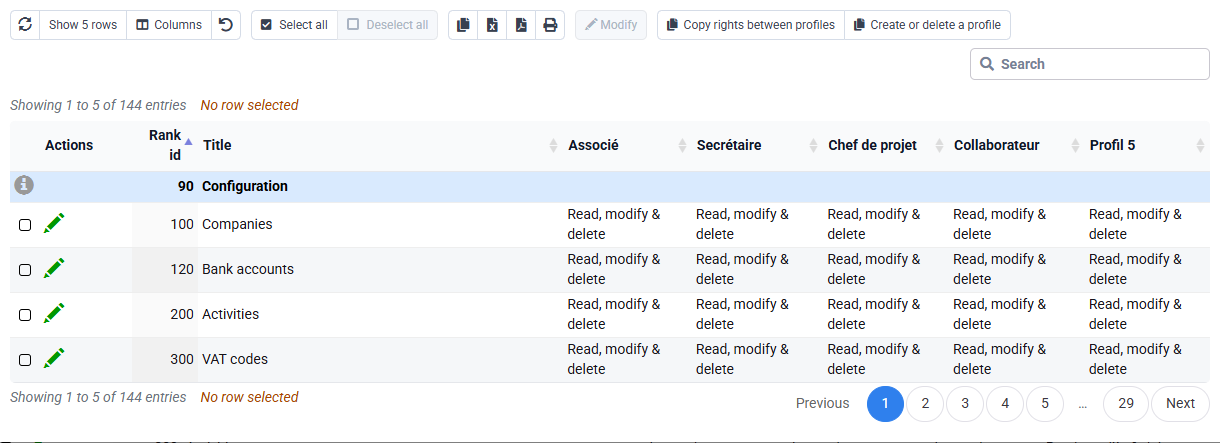
Open Employees, the selected employee’s login rights and the profile matrix. The employee record supplies identity, company, group and operational links. The profile grants page capabilities. Login scope determines which employees, clients or matters are visible. Column permissions can hide sensitive values such as cost price.
Rights therefore answer three separate questions: which page, which records and which fields. Test all three with the representative account. Search for a matter the employee should access, open time entry, and verify that cost-price columns and administration pages are absent. Do not infer business-user behaviour from the administrator view.
Check profile, record scope and cost-price visibility separately. An “Associate” profile, “All” scope and visible costs fail the restricted target; correct each setting and repeat the test with the business account.
3. Approve and lock without erasing history
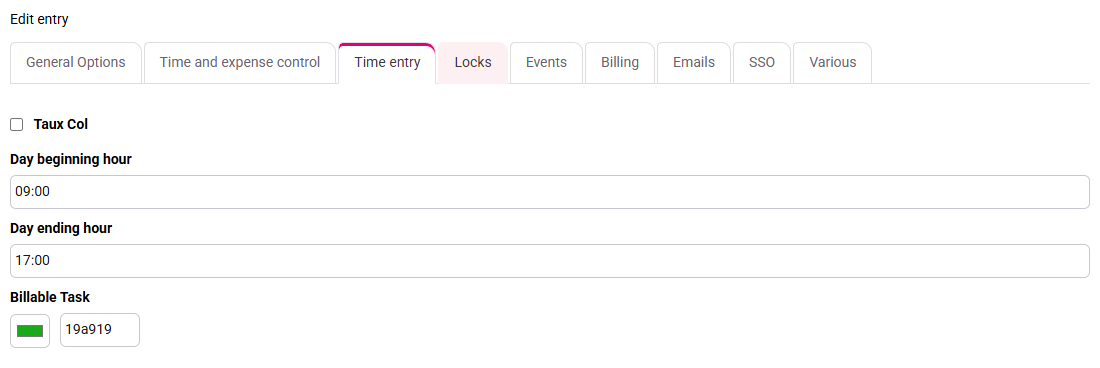
Approval separates entry from managerial control. Locking prevents changes before a chosen date or in a validated period. These mechanisms protect history only when the organisation knows who approves, when the cut-off occurs and how a legitimate exception is handled.
Test the selected employee in one open and one locked period. The expected result is that current work follows the normal workflow while the locked line remains visible but cannot be silently altered. If it disappears, check scope and filters; if it remains editable, check effective profile, company, cut-off date and approval state. Locking is a process control, not a substitute for correct rights.

4. Stabilise tasks, sales, tax and expense reference data
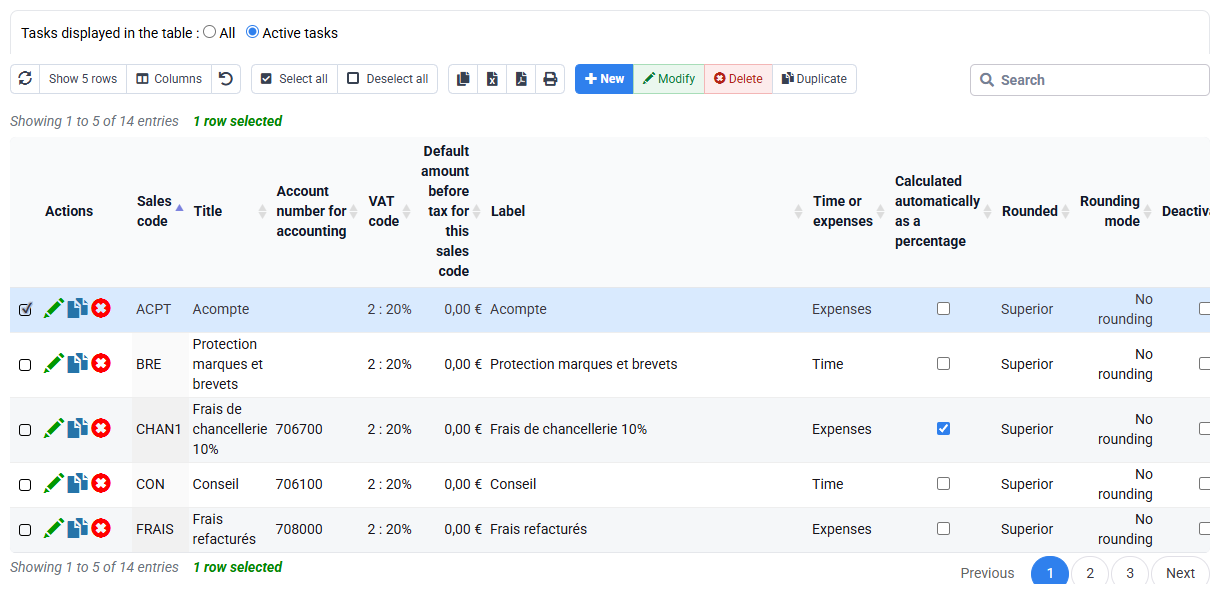
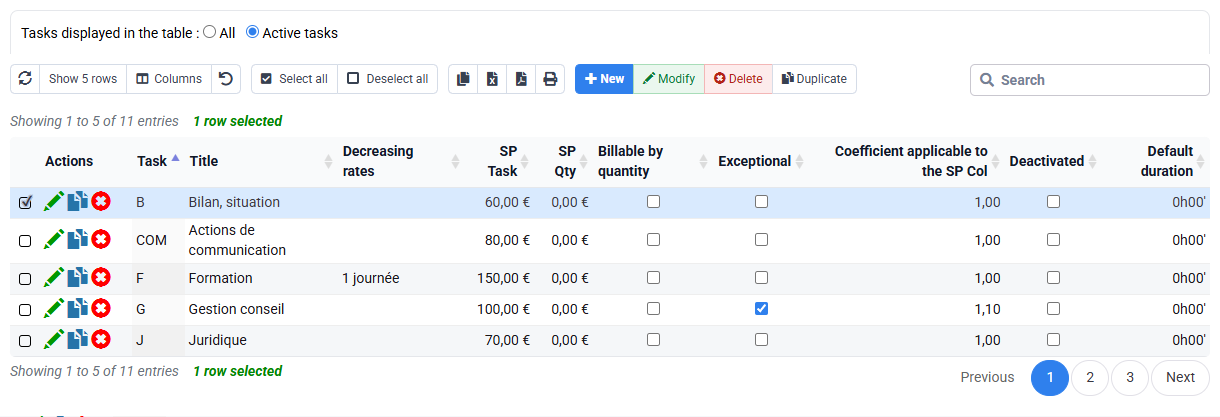
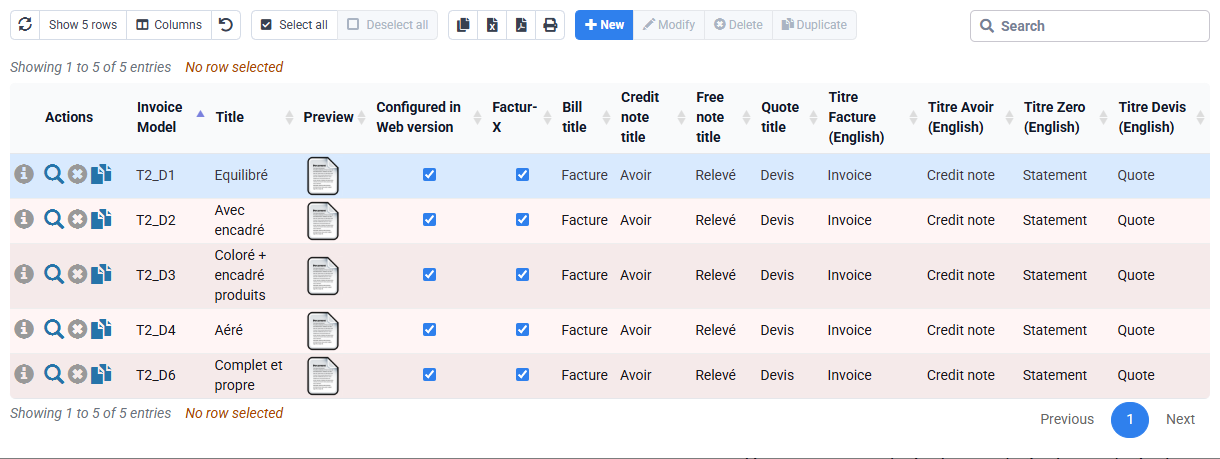
Sales codes, VAT codes, expense codes, billable tasks, non-billable tasks and invoice templates translate operational entries into commercial and accounting outputs. Build dependencies in order: commercial and tax rules first, tasks and expenses next, templates and client settings last. Reuse stable codes rather than creating near-duplicates.
For the case, verify that REVISION is active and billable, maps to HONO and receives VAT code 2 through the intended rule. A non-billable task should remain available for internal work without reaching invoice preparation. Never delete a code used historically: make it no longer usable for new entries so old time, invoices and exports remain intelligible.
5. Separate client rules, electronic routing, cost and price
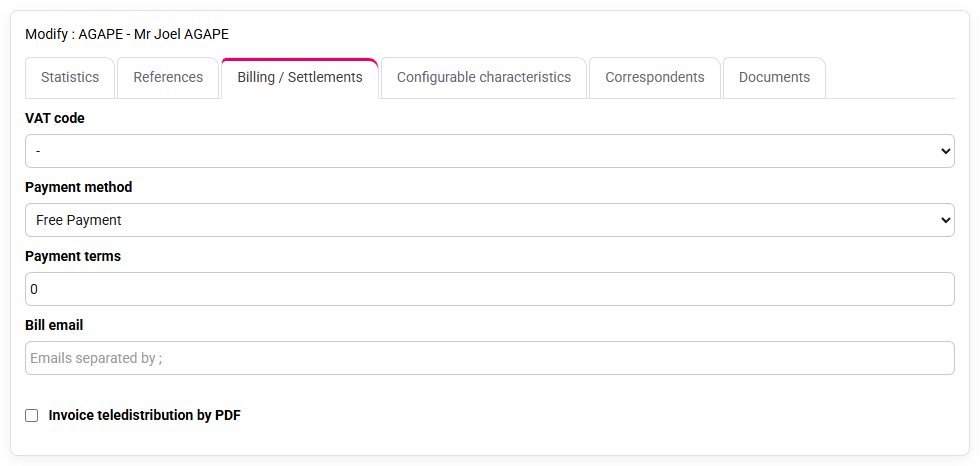
Client billing data can override or complete common rules: payment terms, invoice contact, model, language, VAT context and electronic-invoicing identifiers. Missing PA/eReporting information may not affect time entry but can block transmission later. Custom characteristics need a defined reporting purpose, controlled values and an owner.
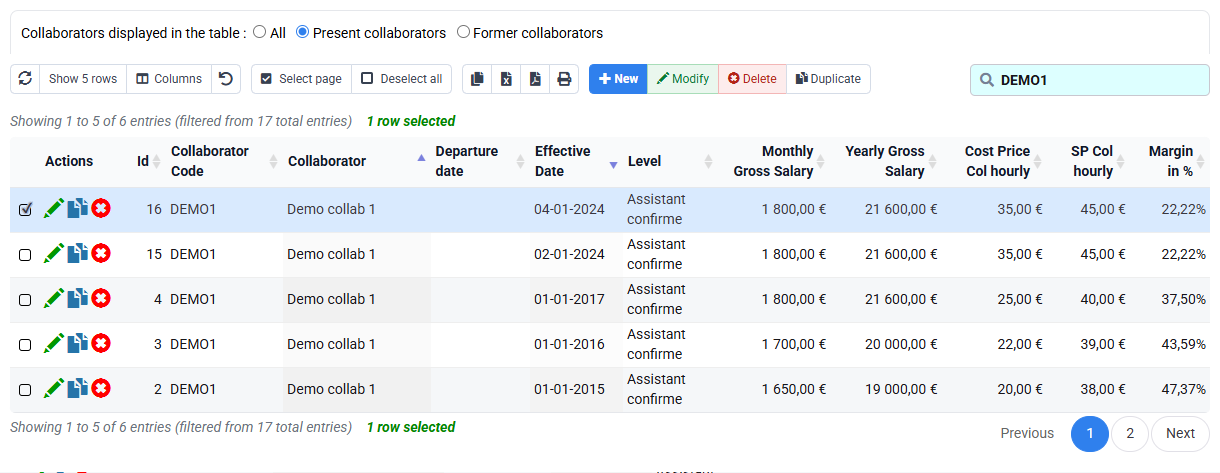
Compensation history supports internal cost valuation; selling prices by employee, matter or quantity support commercial valuation. They are not interchangeable and require different permissions. Effective dates matter: changing today’s value must not silently reinterpret historical work. The selected employee may enter time or quantity without seeing pay history or cost.
If the employee/matter or task/matter exception tables show no row, conclude only that no matter-specific override is observed. The applicable general rule, its effective date and its value must still be identified elsewhere; an empty table does not prove the rate or the margin.
6. Prove the configuration with downstream reports
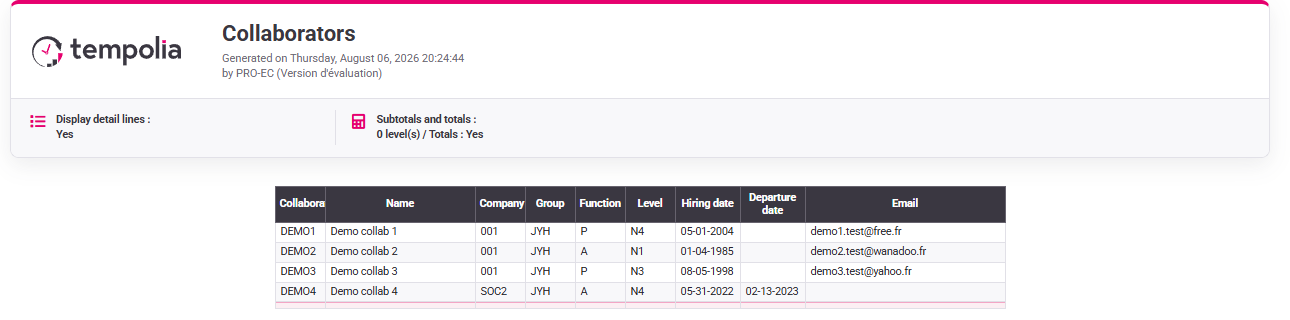
Run a restricted report with the selected employee and a control report with the authorised manager. Use the same company, client, matter and period. The operational rows should agree while confidential cost columns remain hidden. Also verify that REVISION flows to the expected reporting axis and that HONO and VAT code 2 produce consistent commercial data.
If the totals differ, compare filters and data scope before widening rights. If the totals agree but a sensitive column appears, correct the column or profile rule. Capture the effective configuration and the test result together; a screenshot of the configuration alone is not evidence that it works.
Hands-on access acceptance test
- 1. List three permitted and three forbidden operations for the selected employee, including the chosen matter scope, cost visibility and locked periods.Every permission has a business reason and an observable test.If not, stop and ask the role owner to arbitrate before configuring.
- 2. Follow selected employee → group → profile → page → record scope → column and record each value.No access depends on an undocumented administrator exception.If not, inspect inherited profile, duplicate account, company and group.
- 3. With the business account, find the chosen matter, open time entry, look for cost and inspect a locked period without saving.Normal work is possible, sensitive cost is hidden and history is protected.If not, identify whether page, row, column, lock date or approval causes the issue.
- 4. Confirm REVISION → HONO → VAT code 2 and compare restricted and manager reports.Operational totals agree while confidential fields respect the role.If not, review task mapping, effective dates and filters before expanding rights.
Errors that create future incidents
- Testing only with an administrator account.
- Granting a broad profile to compensate for one missing page.
- Deleting a code used in historical time, invoices or exports.
- Changing rates without effective dates and an impact review.
- Locking periods before defining approval and exception responsibilities.
Step back
Configuration is a governance decision, not a checklist of switches. Each choice must connect a real need, the smallest sufficient access area and evidence that the rule works. The case demonstrates that usable access and restricted access can be tested together.
- Need: which task requires this value or permission?
- Area: which page, records and columns are necessary?
- Proof: which business-account test demonstrates both permitted and prohibited behaviour?
Test one more user profile
Use a second business account and prepare a four-column sheet: allowed, forbidden, observed and correct.
- 1. Before opening Tempolia, write down the company, profile, groups, visible matters, hidden costs and the period that must be locked.
- 2. Read the profile and groups first, then sign in with the test account and check one authorised action and one forbidden action. Record the exact screen and message.
- 3. Test one meaningful anomaly: the chosen matter is missing, a cost is visible, a locked period can still be edited or a report shows unrelated matters. Check the setting that governs that symptom, then repeat the same test.
- 4. Close every tab and repeat the route from your notes. Then give the notes to a colleague and let that person perform the same read-only check without oral help.