


Understand how Tempolia works as a whole
Objective. Understand how Tempolia connects master data, clients, matters, time, expenses, budgets, invoices, payments and reports within the same operational workflow.
What you will learn
- Identify the source screen for each type of information.
- Follow the chain from the client and matter through to invoicing, payment and reporting.
- Distinguish master data, forecasts, actual activity, issued documents and payments.
Recommended workflow
- Start with issuing companies, general options, bank accounts and user rights.
- Review a client record and one of its matters before examining related activity.
- Follow time, expenses and budgets through invoice preparation and payment recording.
- Use reports to reconcile the detailed source data with the expected totals.
Before continuing
- The issuing company, client and matter are correct.
- Forecast, actual, invoiced and paid amounts are not being confused.
- Any anomaly is corrected at its source rather than only in the final report.
Before you begin
You are helping a new colleague explain an issued invoice selected in your own subscription. You will not change any data. Identify every source and prove that issuing company, client, matter, work performed, budget, invoice and payment form one coherent chain.
Prerequisites in your subscription
- In your subscription, have read access to clients, matters, time, expenses, budgets, invoices, payments and reports.
- Select one of your own issued invoices. Write down its number, period, net amount and payment status before opening another screen.
- Prepare a control sheet with seven headings: company, client, matter, actual work, budget, invoice, and payment/report.
- Carry the same invoice number and filters from screen to screen; record any difference in client, matter, period or amount before continuing.
Suggested schedule — 55 min
- 5 min: establish the vocabulary and record the four invoice facts.
- 10 min: locate the issuing company, client and matter.
- 10 min: connect events, engagement letter and budget.
- 10 min: identify the time and expenses behind actual work.
- 10 min: reconcile invoice, payment and customer account.
- 7 min: complete the diagnostic workshop.
- 3 min: step back and formulate the navigation rule.
1. Establish the database foundation
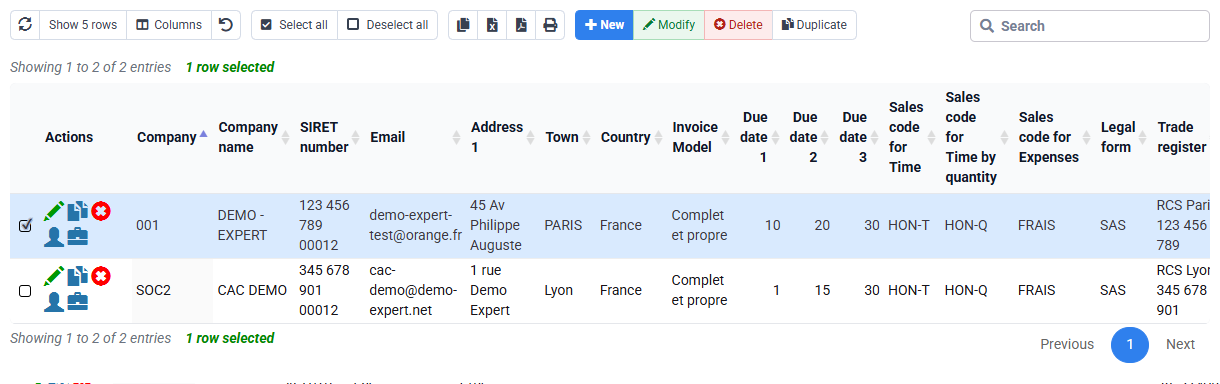
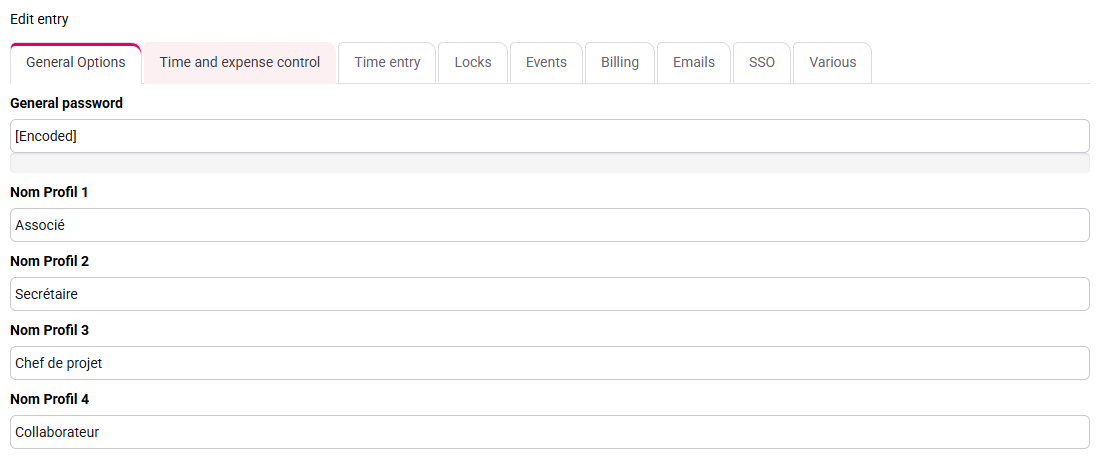
Open Configuration > Companies, General options and Bank accounts. The issuing company supplies the legal identity, logo, bank details and invoicing context. General options define shared behaviour and profiles. These are not decorative settings: they reappear in invoices, payments, exports and controls.
For your selected invoice, identify its issuing company and check that the company and bank shown on the invoice match the source records. Do not “fix” a report when the legal source itself is wrong. Also remember that access rights may hide a record or a column; an empty view does not necessarily prove that the business data is absent.

2. Move from client identity to an operational matter
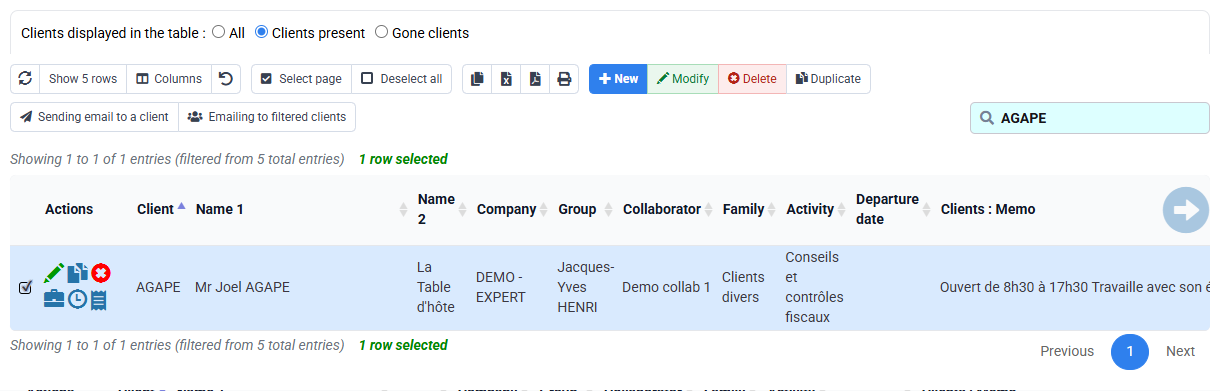
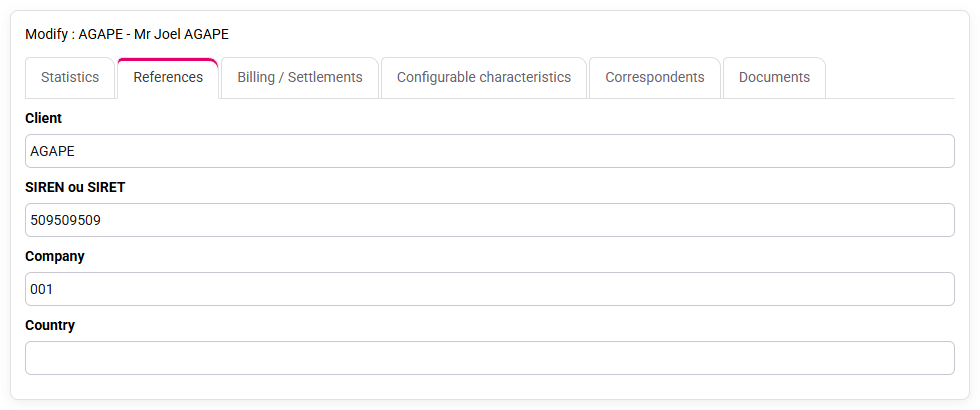
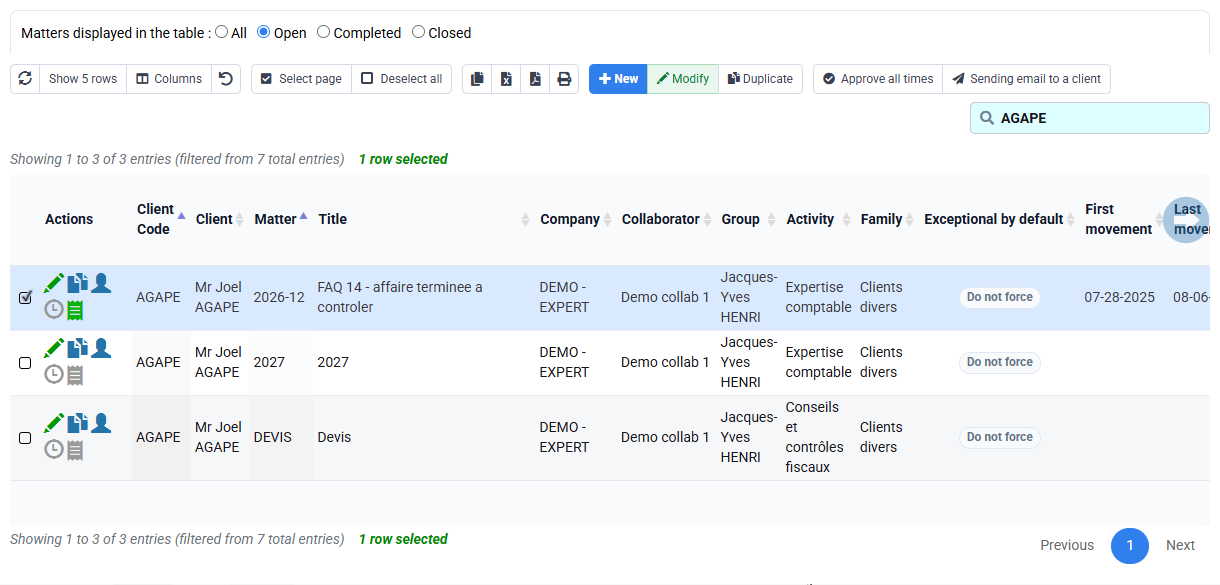
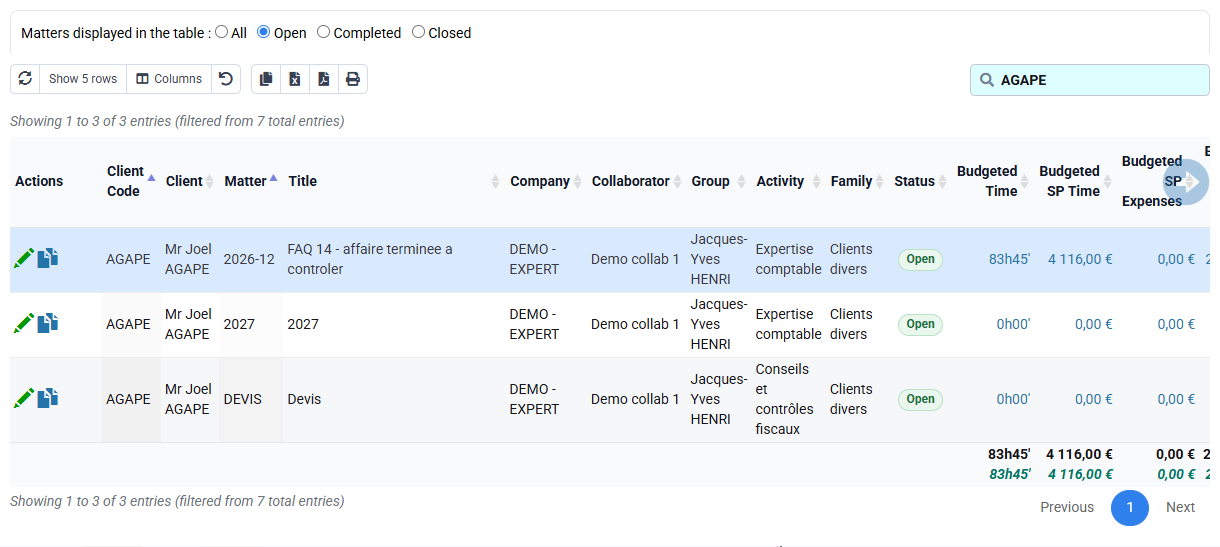
Open Clients / Matters > Clients, then Matters. A client identifies the buyer; a matter defines the operational scope. On your selected client, check code, name, status, country, billing data and manager. On its matter, check the client link, activity, status and responsible people.
This distinction prevents a common error: assigning work to the correct client but the wrong year, mission or matter. Filters and reports use these links. If the invoice points to another matter, record that discrepancy before investigating time or budget.
3. Connect commitments and forecasts
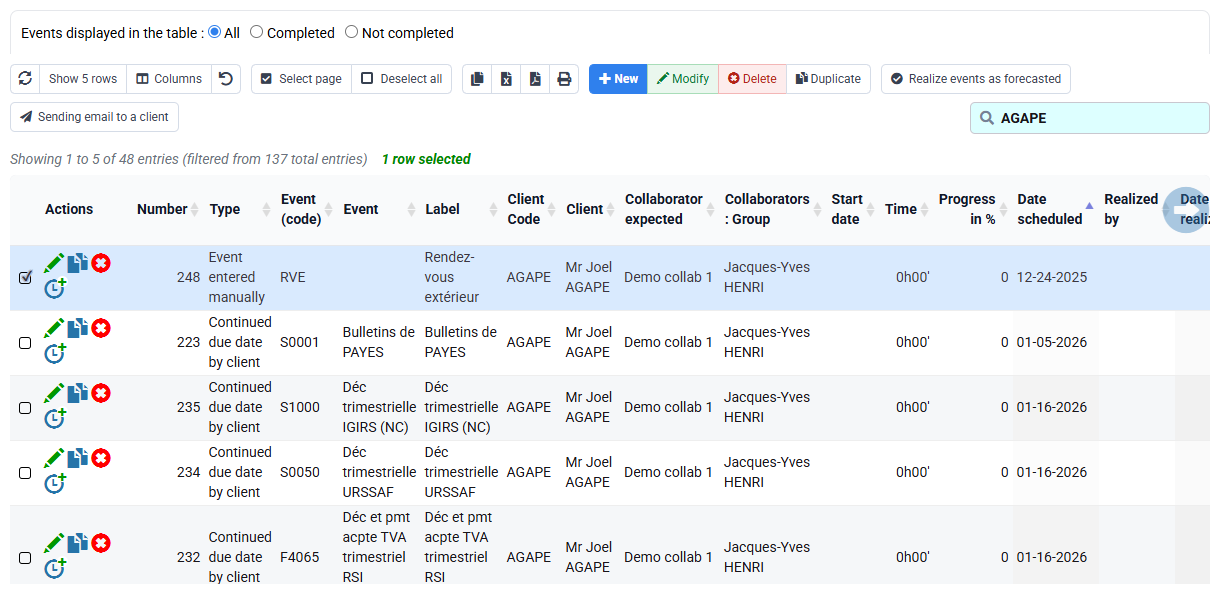
Events, permanent deadlines and engagement letters explain what must be done and why. Review client and matter events, permanent deadlines and engagement letters. Confirm that the recurring mission, period and responsible person agree with the matter.
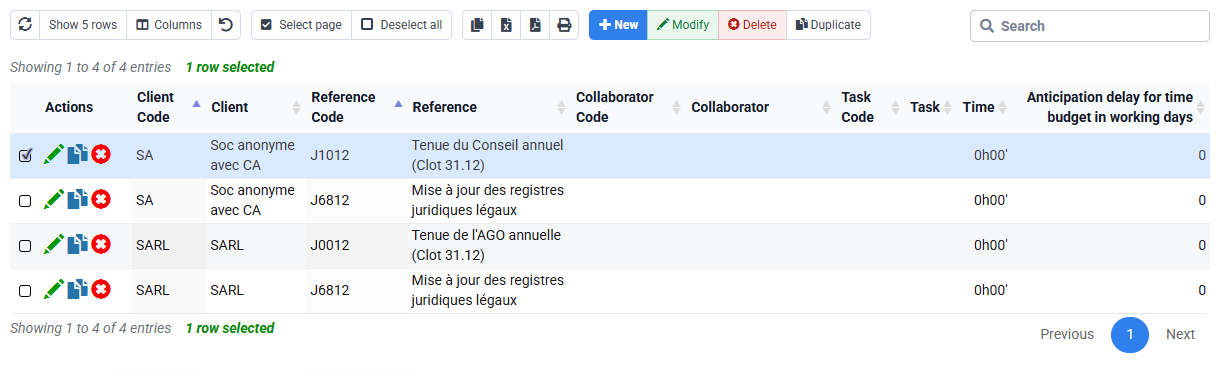
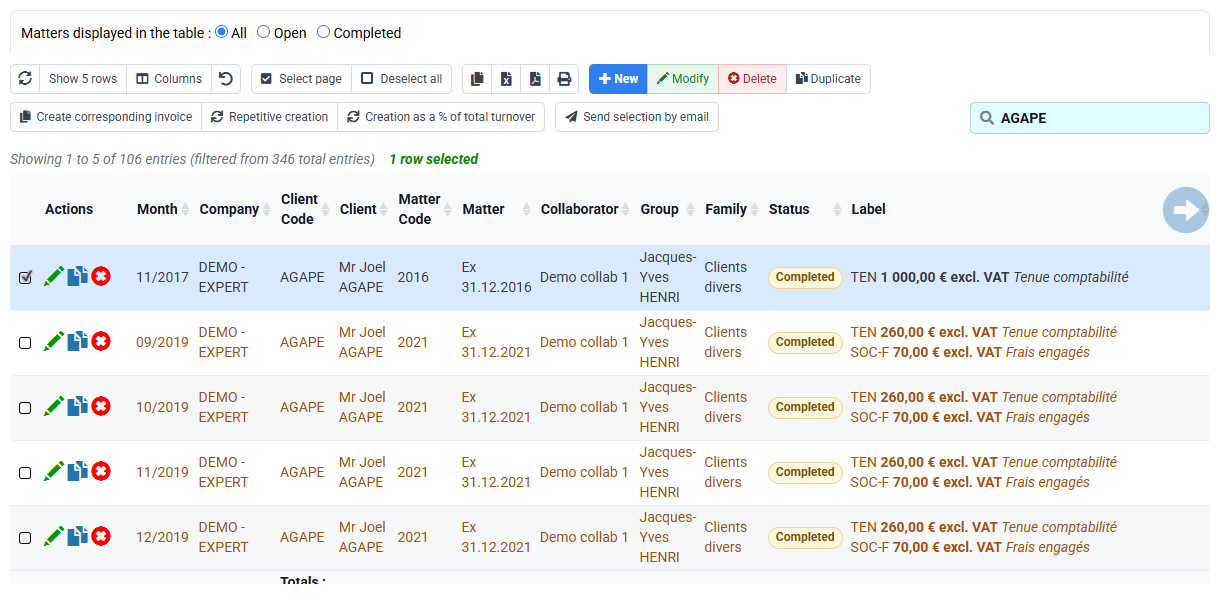
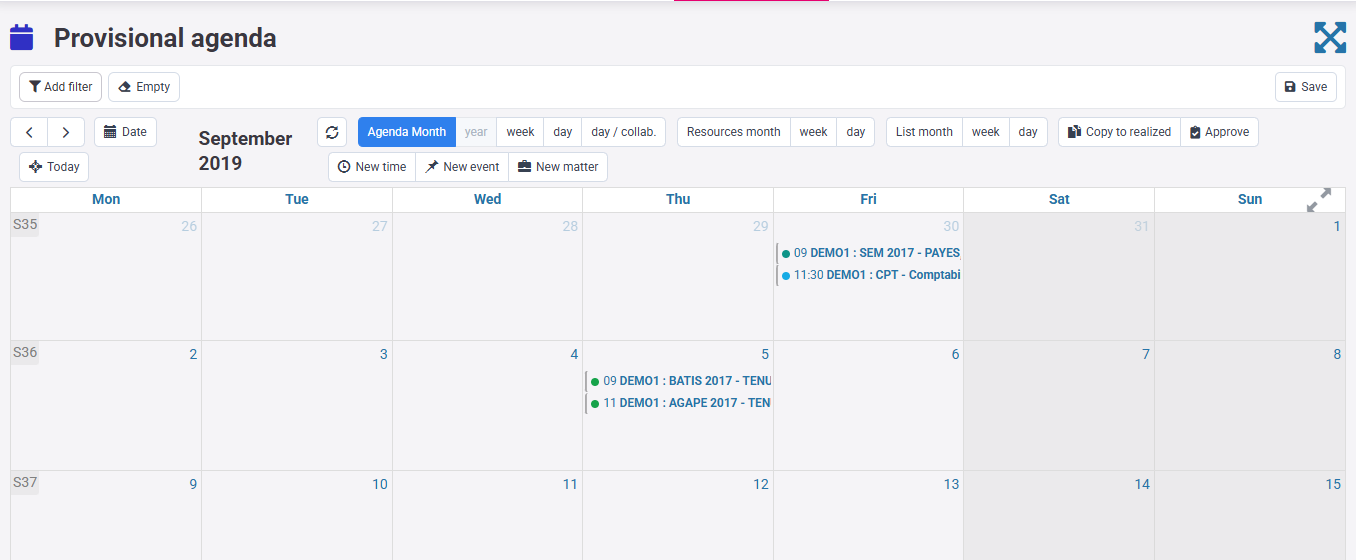
Then open budgets by matter, detailed time budgets, monthly billing budgets and the forecast agenda. A budget describes the expected workload, expenses and fees; it is not proof that work was performed. On your control sheet, keep “forecast” separate from “actual”. This distinction is essential when the invoiced amount follows a fixed fee rather than the exact time entered.
4. Verify actual time and expenses
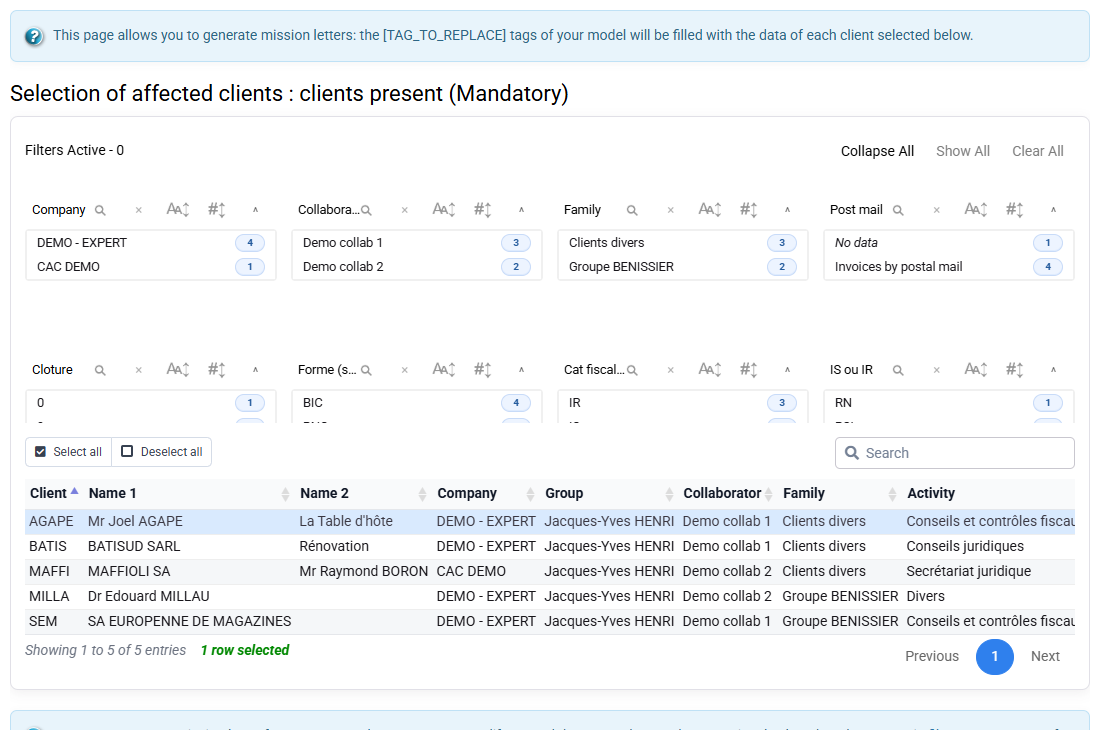
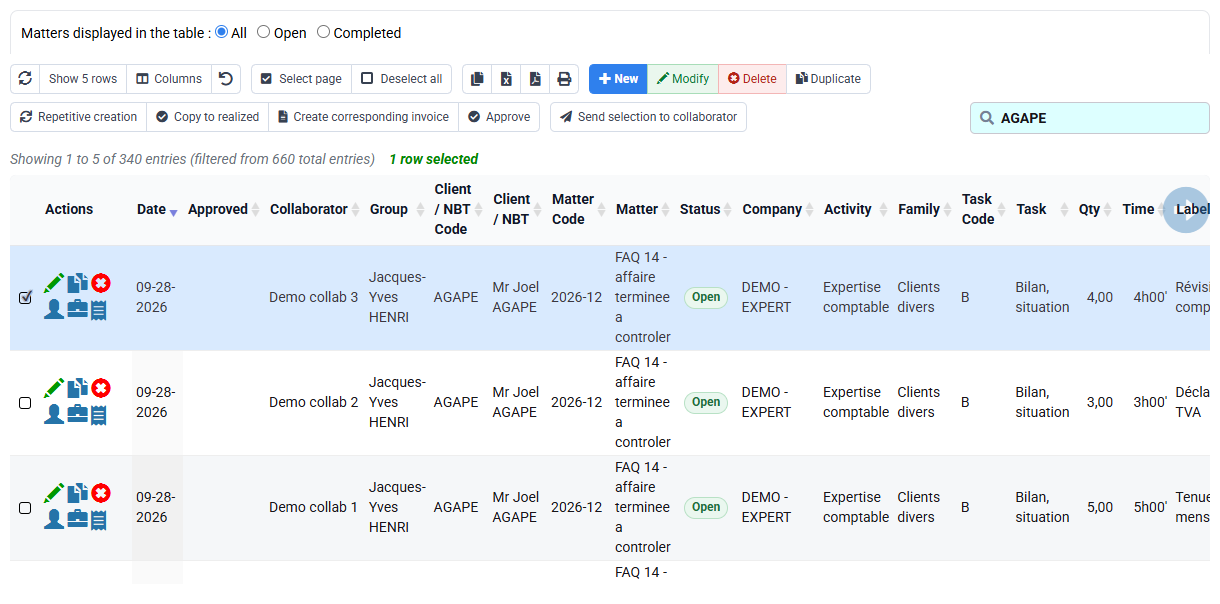
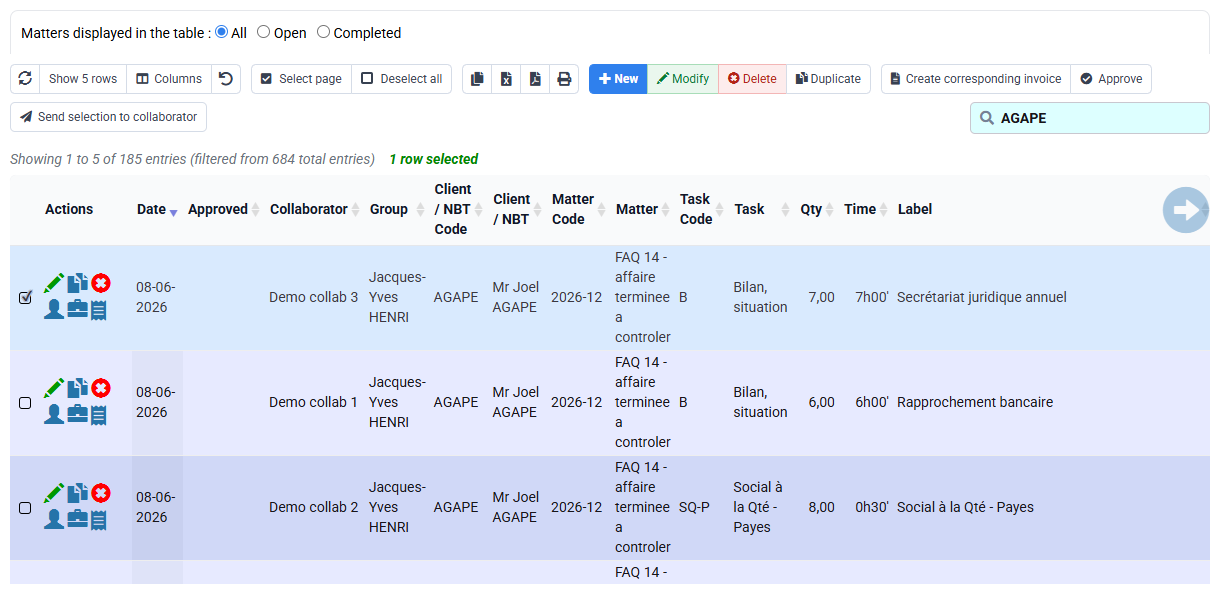
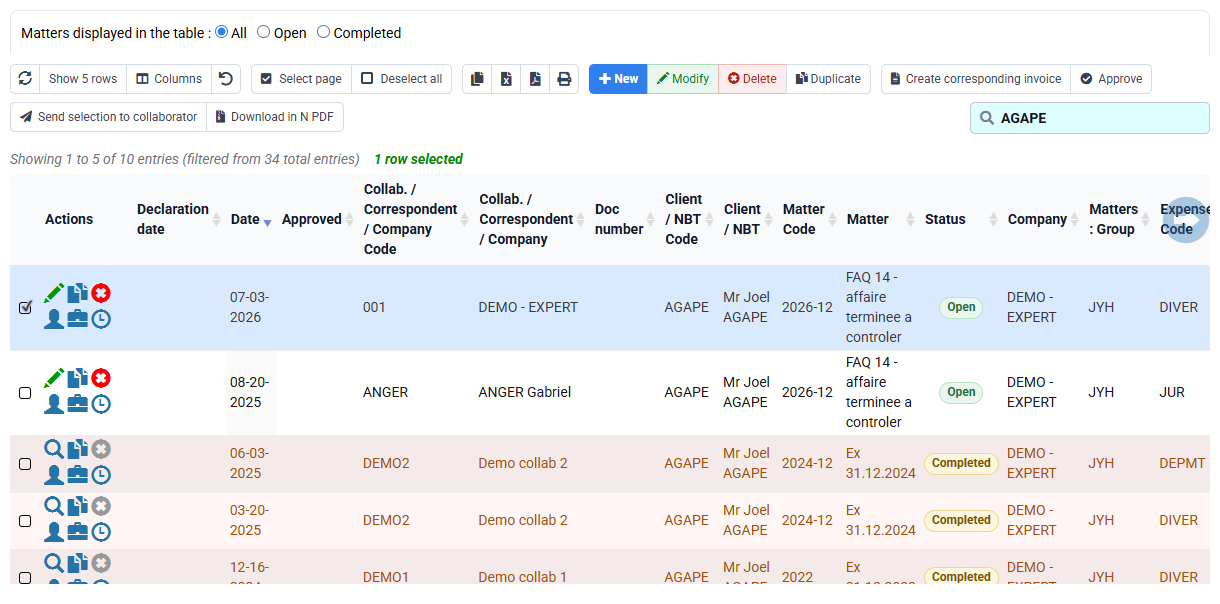
Open Time detail and Expense detail. Filter the same client, matter and period used on the invoice. Review employee, task, description, duration or amount, billable status, approval and already-invoiced status. A line outside the period or attached to another matter will not explain the invoice, even when its description looks similar.
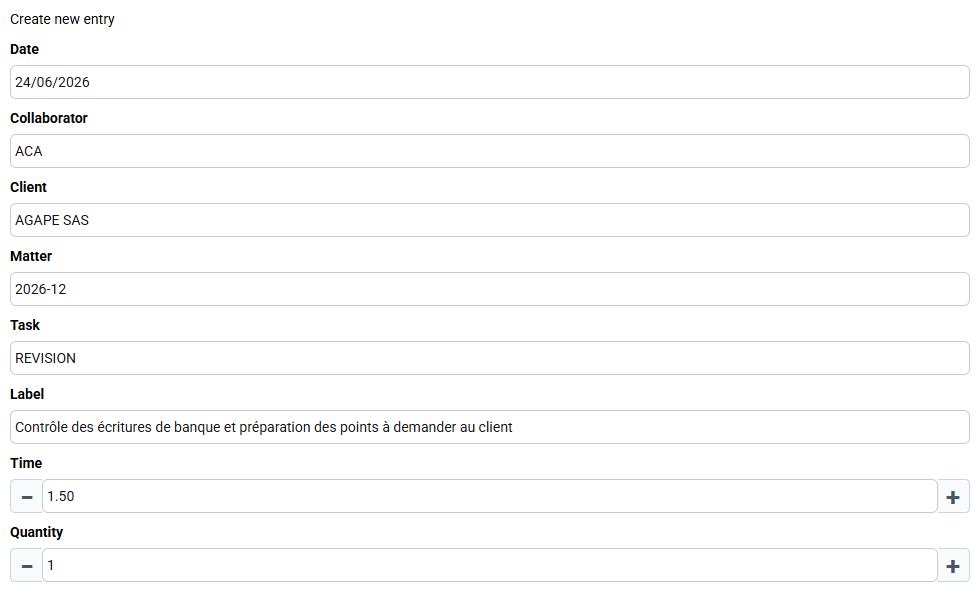
The unit editor shows how a time entry is created; the detail lists provide the audit trail. Read the data before editing it. The expected result is a list of actual entries that can be clearly included, excluded or identified as unrelated.
5. Follow invoicing and payment without confusing their states
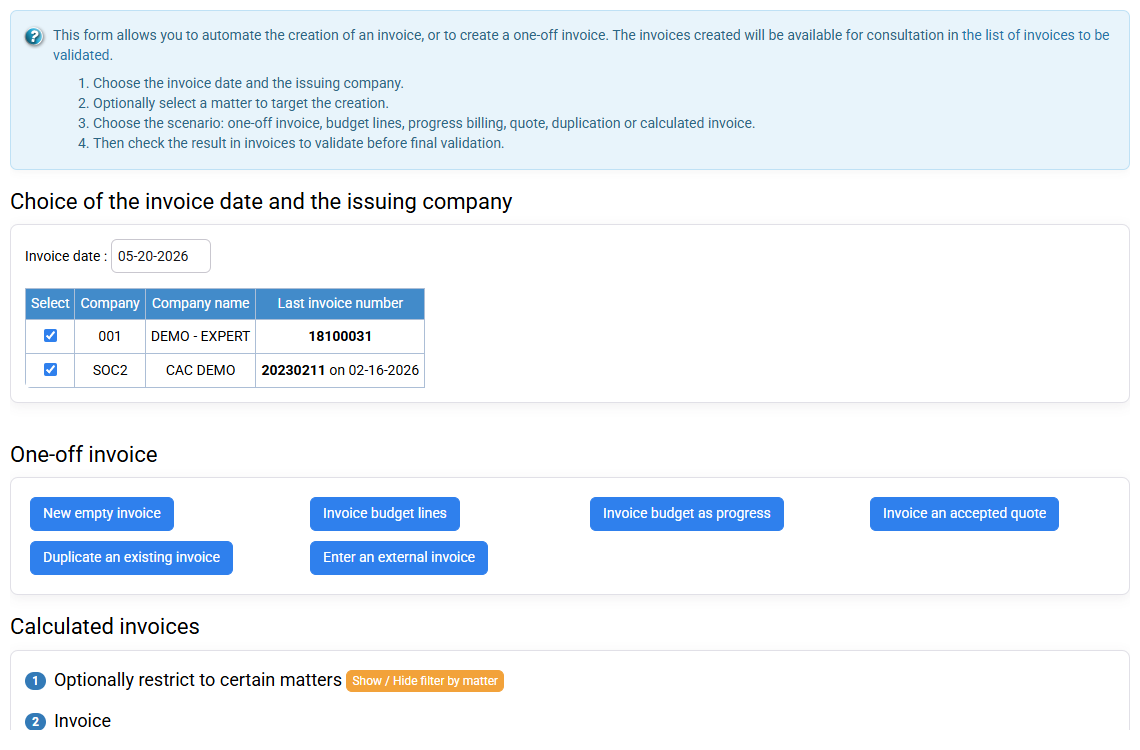
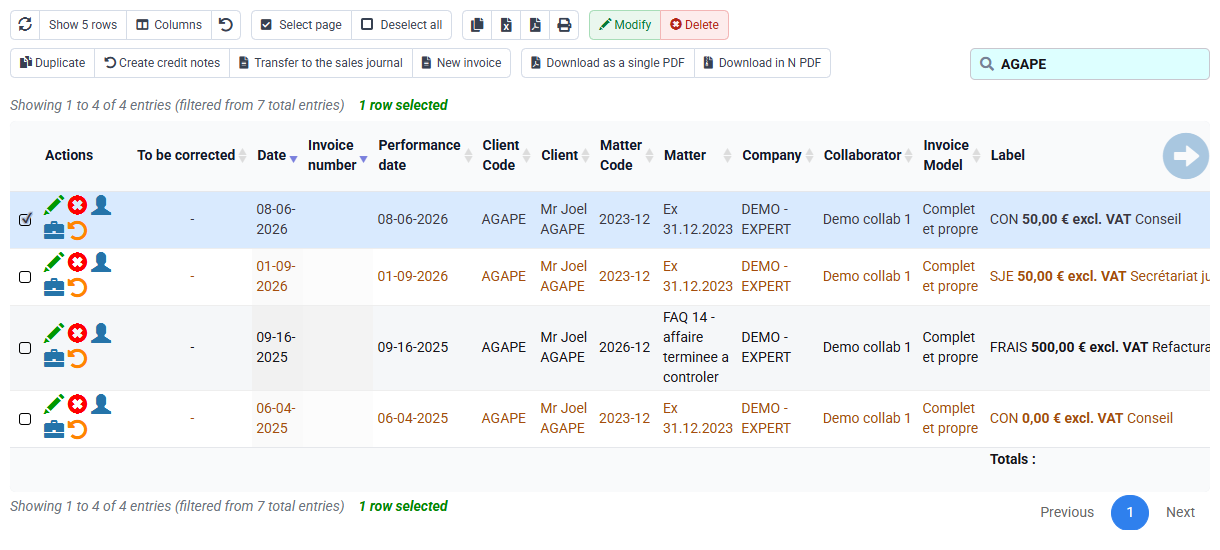
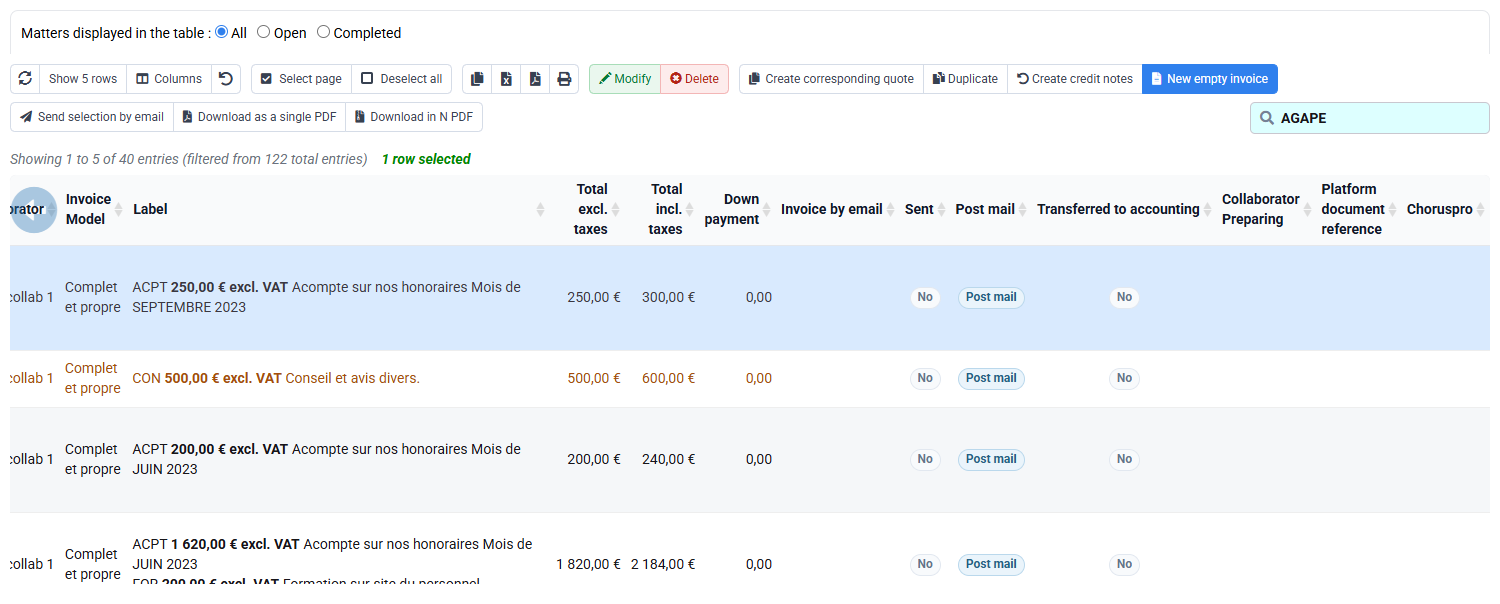
Invoice preparation selects eligible budgets, time, expenses or subscriptions. Invoices awaiting validation are still projects that can be reviewed; the sales journal contains issued documents. Compare the selected source, net amount, VAT, dates and client conditions. Never treat a prepared document as issued revenue.
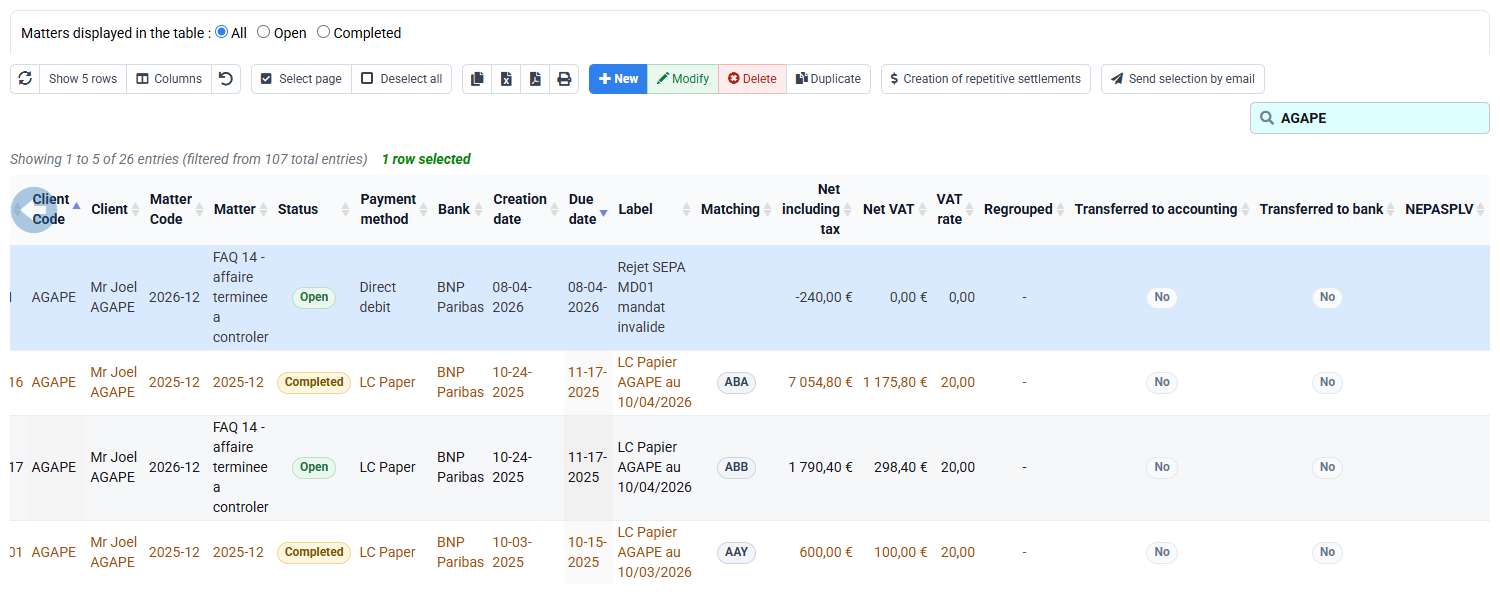
Then open Payments and customer movements. An issued invoice can remain unpaid, be partially paid or be matched to several movements. The payment table must explain the paid amount and remaining balance before any reminder is sent.

6. Reconcile detail with analysis
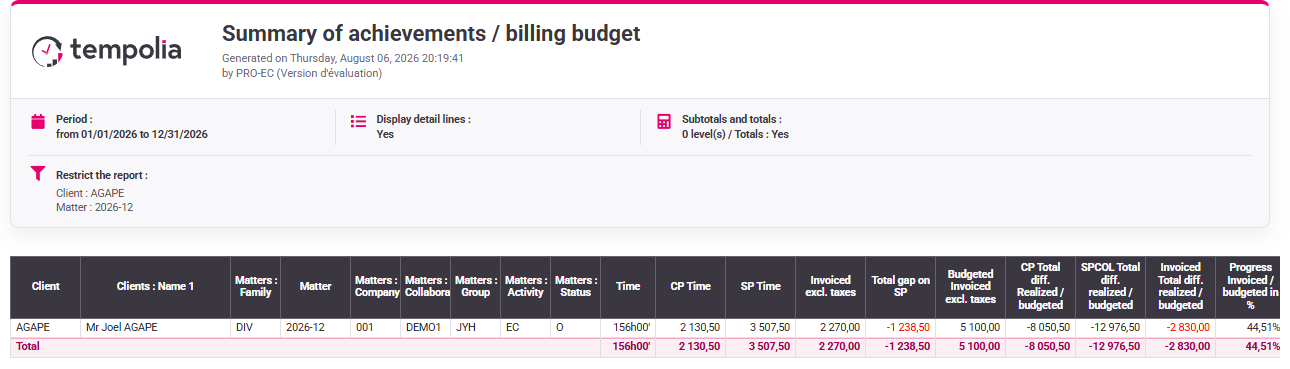
Finish in Tools > Reports / Outputs, Pivot tables or Export. Reproduce the same company, client, matter and period. Choose columns and grouping deliberately. A total is useful only when you can return from it to the detailed records.
If the report differs, first compare filters, dates and statuses; next compare source rows; only then consider a data correction. Save the perimeter in your control notes so another user can reproduce the result.

Hands-on diagnostic
- 1. Start from the sales journal and record company, client, matter, period, invoice number and amount.The company/client/matter levels are identified without ambiguity.If not, check active company, client code, matter link and list filters before examining time.
- 2. Apply the same perimeter to budget, time detail and expense detail. Mark each item as forecast, actual, billable, invoiced or unrelated.You can explain which source records support the invoice and which do not.If not, check dates, billable status, already-invoiced status and matter assignment.
- 3. Reconcile the issued invoice with payments and reproduce the perimeter in a report.Invoiced, paid and outstanding amounts are all explainable.If not, inspect matching, payment date, issuing company and report statuses.
- 4. Close the tabs, restart with only the invoice number and explain aloud why each screen is opened.Another user can reproduce the route from your notes without already knowing the file.If not, restart with company → client → matter → forecast/actual → invoice → payment.
Frequent mistakes and recovery
- Changing an invoice before checking its client, matter and reference data.
- Comparing a detailed list with a report that has different filters or statuses.
- Assuming an empty screen means no data without checking company, period and rights.
- Confusing planned, performed, prepared, issued and paid values.
Step back
Theory presented Tempolia as a connected data chain. Practice made you trace one invoice back to its sources. The business decision is to intervene at the correct level rather than retouching the last visible total.
- Wrong identity or commercial terms: return to company or client.
- Wrong work perimeter: return to matter, engagement or budget.
- Wrong actual activity: check time, expenses, statuses and dates.
- Correct data but misleading total: align report filters and groupings.
Try the route on another invoice
Choose a second issued invoice in read-only mode. The aim is to explain the amount, not to repeat the first answer.
- 1. Before opening Tempolia, write down company, customer, matter, period, invoice status, net and gross amounts and any open balance.
- 2. Follow the same order every time: sales journal, customer and matter, budget or actual work, invoice, payment and report. Keep the same dates and filters on every screen.
- 3. Change one date or status filter, predict which line will disappear, then restore it. If the result is still different, stop at the first screen where the source no longer matches.
- 4. Close every tab and repeat the route from your notes. Then give the notes to a colleague and let that person perform the same read-only check without oral help.